USE CASE
The WordPress Chatbot That Learns Your Pages
ClevrBot is a WordPress chatbot plugin that reads the posts and pages you already publish and answers visitor questions from them, 24/7. You don’t build conversation flows or write training data.
10-20 sec
is how long users often stay on a web page before they leave.
Source: Nielsen Norman Group
The problem
Your answers are on your site. A WordPress chatbot helps visitors find them.
Without a chatbot
- The answer exists, but it sits three clicks deep on a page the visitor never opens.
- WordPress search returns a list of links, not a reply to “Do you work weekends?”
- Your contact form asks for a phone number before the visitor knows you’re a fit.
- A question sent at 9 p.m. waits until morning, and many visitors won’t wait.
With ClevrBot
- Visitors type a question in plain words and get an answer drawn from your published content.
- The chat opens on the page they’re reading and replies in the language the visitor writes in.
- Every answer comes from pages you wrote, not from a script someone has to maintain.
- Visitors who want a follow-up can leave their email right in the chat.
Examples by industry
What visitors ask, answered from their own sites
Real Estate
Do you help first-time buyers?
Our Buyers page explains how we guide first-time buyers from pre-approval to closing. Leave your email and an agent will follow up.
Property Management
How do I report a maintenance problem?
Current residents can submit requests through the portal linked on our Residents page. For emergencies like a burst pipe, call the 24-hour line listed there.
Restaurants
Do you have gluten-free options?
Yes. Dishes marked GF on our menu page are gluten-free, including the risotto and the grilled salmon.
Law Firms
Do you offer free consultations?
Yes, our Contact page says first consultations for personal injury cases are free. Leave your email and our office will follow up.
The WordPress plugin
How the ClevrBot WordPress chatbot plugin works
Here is what happens after you install it, step by step, from our setup guide. Still comparing tools? Read our plugin comparison.
Install from a zip file
Download the plugin from clevrbot.com. In your dashboard, go to Plugins, click Add New Plugin, then Upload Plugin, and choose the clevr-bot.zip file. Click Install Now, then Activate, and enter your email address to continue.
Choose what it learns
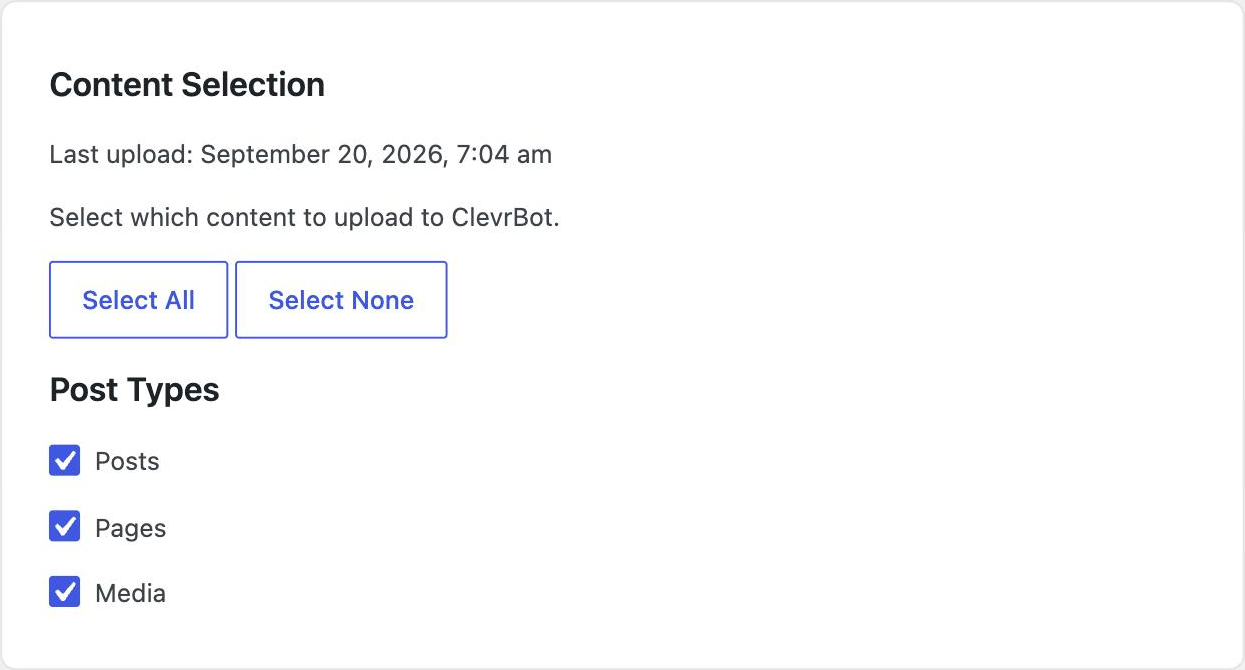
Select the post types ClevrBot should learn from, such as Posts and Pages, then click Upload Content to ClevrBot. It learns every published item in those types, including pages no menu links to. You can also add folders of static HTML files, entered as paths relative to your WordPress install directory.
Know what gets indexed
ClevrBot reads the title and body text of each selected page and post, but not images, so a price list saved as a picture won’t be learned. Content stored only in theme settings or pulled in from an outside feed usually isn’t included either. On the Free and Starter plans, upload again after you change hours, prices, or services.
Test in Preview only mode
Set the widget to Preview only and it appears just for logged-in administrators, so you can try real questions before anyone else sees it. Switch it to Everyone when you’re happy, and a Chat with us button appears at the bottom right on phones, tablets, and desktops. If it doesn’t show up, clear your hosting and CDN cache.
Brand it and capture emails
Pick a widget color for the launcher, header, and action buttons, and choose a logo from your media library to show as the bot avatar. After a visitor’s first message, the widget invites them to leave an email, with their name optional. Turn on Require name and email if you want contact details before anyone can chat.
Read every conversation
Chat History in your WordPress dashboard shows each conversation and any contact details the visitor left. Email notifications tell you when a new conversation starts, and an optional summary arrives after 2 hours of inactivity or when the visitor ends the chat.
Setup guide
Set up your WordPress chatbot for better answers
Installing the plugin is the easy part, and the quality of every answer depends on the content you give it.
Audit what’s published
In Pages and Posts, filter by Published and scan the list. ClevrBot learns published pages even when no menu links to them, so move old promotions, test pages, and retired services to draft first.
Write down your top ten questions
Pull them from your inbox, voicemail, and contact form entries. Typical ones cover hours, service area, starting prices, turnaround time, and what to bring or prepare.
Put every answer on a page
If an answer isn’t published anywhere, the chatbot can’t give it. A plain FAQ page with one question per heading, worded the way customers ask, is the fastest fix.
Replace images with text
ClevrBot doesn’t read images. If your menu, price sheet, or hours live in a graphic, add the same details as text on the page.
Test before you go live
Upload your content, set the widget to Preview only, and ask your ten questions while logged in. When an answer is vague, improve the page it came from, upload again, and then switch the widget to Everyone.
Set up your follow-up
Turn on email notifications so you hear about new conversations, and check Chat History to see what each visitor asked. State on your contact page when you reply, such as “within one business day,” so the chatbot can answer “When will I hear back?”
Know the limits
What ClevrBot won’t do on your WordPress site
It won’t take appointments, orders, or payments
Instead: Keep the tools you already use for those. Explain on your pages how customers use them so the chatbot can point people to the right place.
It won’t quote custom prices or estimates
Instead: Publish starting prices or ranges where you can, and let visitors leave an email for anything that needs a real quote from you.
It doesn’t connect to your CRM
Instead: Copy the emails you collect from Chat History into the system you already use as part of a daily routine.
It can’t write custom replies yet
Instead: Change an answer by editing the page it comes from and uploading your content again. Custom responses are planned for the Pro plan.
It only knows your last upload
Instead: Upload your content again after every change to hours, prices, or services, since the Free and Starter plans refresh on demand.
Getting started
How It Works
Install the Plugin
Works with any WordPress theme.
Select Your Content
Choose which pages to index.
Start Capturing Leads
Answer questions 24/7.
Is this AI chatbot for WordPress a plugin or a separate service?
You install ClevrBot as a regular WordPress plugin and manage it from your dashboard. The plugin uploads the content you select to ClevrBot, which generates the answers your visitors see. ClevrBot uses third-party partners for its AI models, and your data is not used to train any models.
Do I have to build conversation flows or train the chatbot?
No. You pick which post types to upload, and ClevrBot answers from that content, with no decision trees to draw or question-and-answer pairs to type in. If an answer needs to change, edit the page it came from and upload your content again.
Can visitors chat in other languages or reach a person?
ClevrBot recognizes the language a visitor writes in and replies in that language, drawing on your existing pages. If you set up live chat handoff, someone on your team can take over a conversation. If you haven’t, the visitor can leave an email and you can follow up from Chat History.
What happens when I update a page?
On the Free and Starter plans, content refresh is on demand. After you change a page, open ClevrBot’s settings and upload your content again, and the chatbot learns the new version. Make it part of your routine whenever you edit prices, hours, or services, so visitors never get last season’s answer.
How much does ClevrBot cost?
The Free plan costs $0 and includes 100 messages, and Starter is $49 a month for 1,000 messages a month with setup support. Pro, at $149 a month, is coming soon. Plans are billed monthly with no contract, and extra 500-message packs roll over from month to month, as listed on our pricing page.
Why isn’t the chat widget showing on my site?
Check that the widget is set to Everyone in ClevrBot’s settings, because Preview only shows it just to logged-in administrators. If it still doesn’t appear, clear your hosting and CDN cache, since visitors may be seeing an older cached copy of your pages. Then reload your site and look for the Chat with us button at the bottom right.
How is ClevrBot different from other WordPress chatbot plugins?
Many chatbot tools ask you to build conversation flows or add training content by hand. ClevrBot starts from the pages you already publish and stays focused on answering questions and capturing contact info, without CRM syncing or checkout. Our plugin comparison covers the trade-offs in detail.
Put your WordPress content to work
Start with 100 free messages. Install the plugin, choose your pages, and turn on the chat widget.